


EU Plug Zigbee3.0 or WIFI adapters Smart Sockets With Power Monitor Wireless App Voice Remote Control works with Tuya Smart life
EU Plug Zigbee3.0 or WIFI adapters Smart Sockets With Power Monitor Wireless App Voice Remote Control works with Tuya Smart life - Beige / 16A WiFi is backordered and will ship as soon as it is back in stock.
Returns & Refunds
Returns & Refunds
Not what you thought it was? We accept returns subject to our returns policy.
Delivery and Shipping
Delivery and Shipping
All orders are tracked by us. Depending on the shipping options available at checkout, you may also be able to track your item. Alternatively contact us if you would like to know the status of your order.

EU Plug Zigbee3.0 or WIFI adapters Smart Sockets With Power Monitor...
10% OFF WHEN YOU SPEND £50 OR MORE
Description
Description
Product size: 50*50*84mm
Weight: 0.09kg
Input voltage: AC100-240V 50/60Hz.
WIFI standard: 2.4GHz 802.11 b/g/n g/n.
Indicator light: blue light indicator switch and distribution network
Shell material: PC+ABS fire rating V0
Working temperature: -20-50℃
Certification standard: CE/ROHS
Graffiti smart or smart life APP can be remotely controlled by mobile phone by connecting with WiFi router.
Support Alexa, Google Home, Tmall Elf Xiaoai and other intelligent voice control.
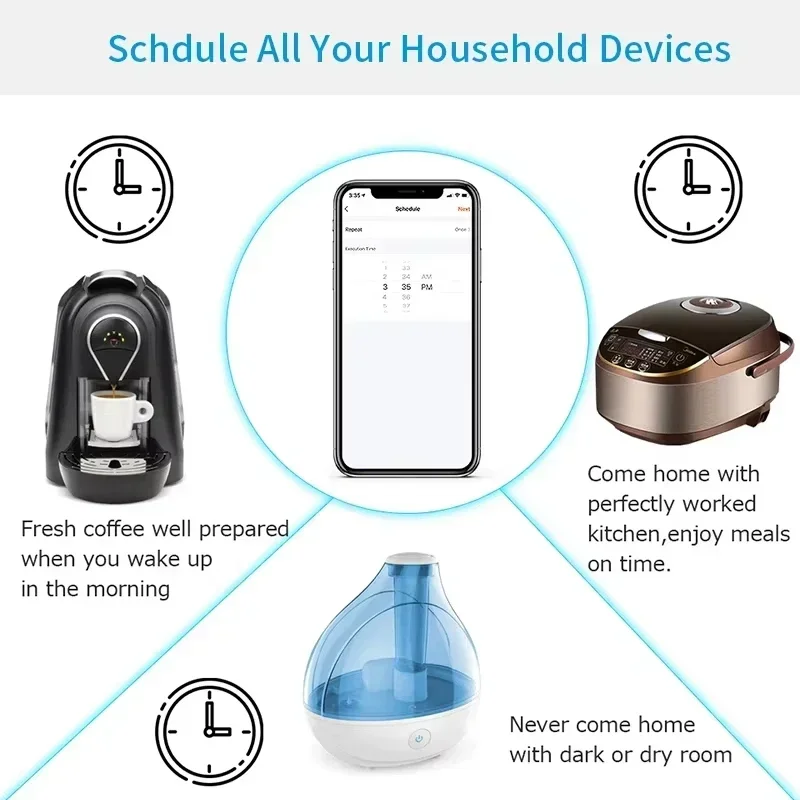
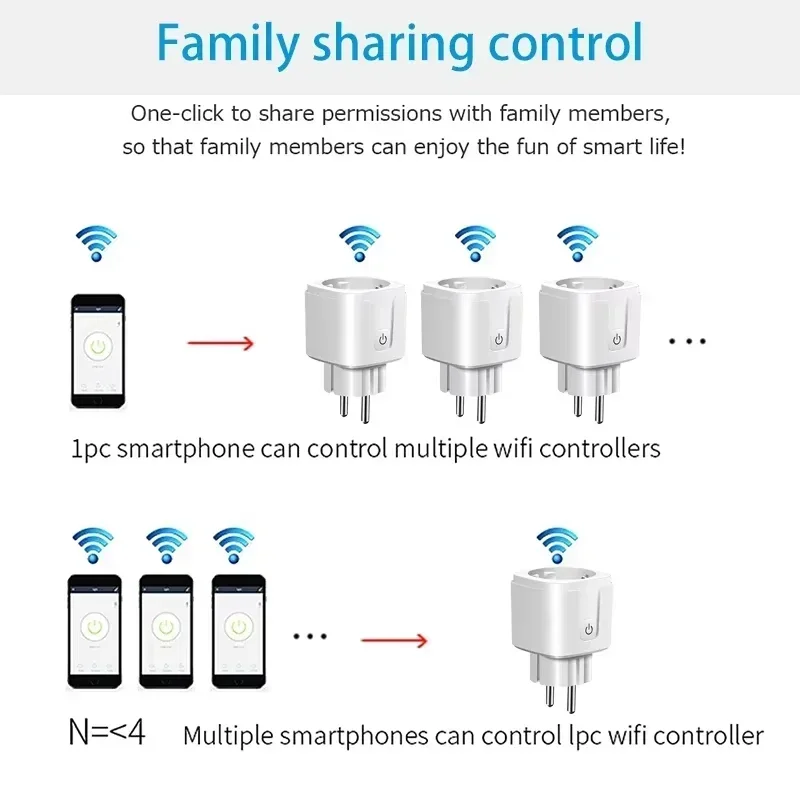
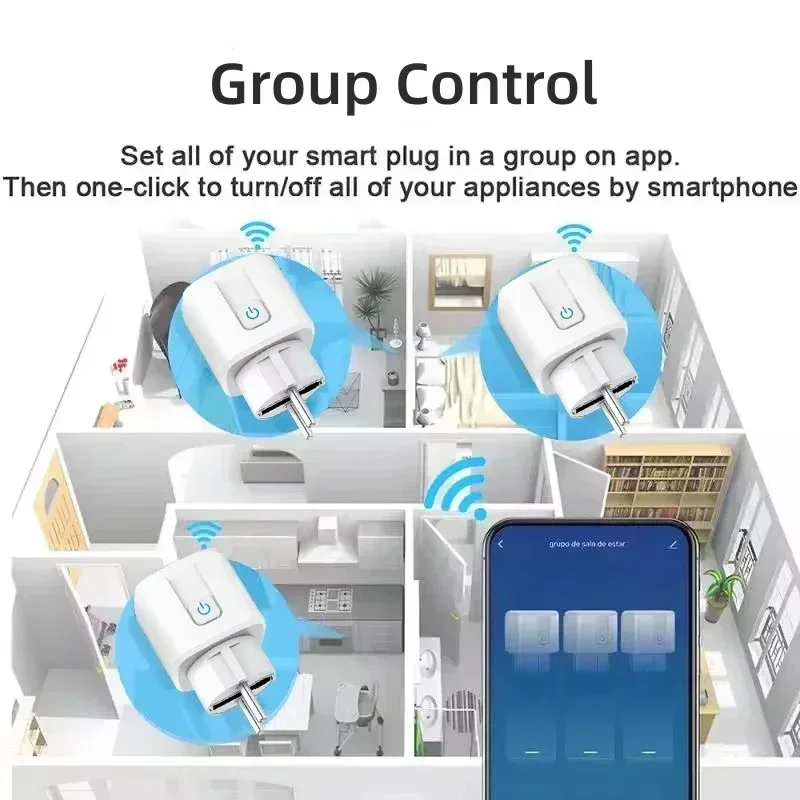
Mobile APP remote control, intelligent timing, intelligent scene linkage, power statistics, sharing control.
APP distribution network operation steps
A. One-button configuration
1. Please connect the mini-socket to the power supply and wait for the blue indicator light to flash, or press and hold the key for 5 seconds until the blue indicator light flashes (twice per second).
2. Connect the mobile phone to wifi and confirm the success.
3. Open the APP, click the Add icon in the upper right corner of the device list, and then select "Socket" to enter the interface of configuring devices.
4. Click "Please confirm that the indicator light is flashing", enter the password of the WIFI currently connected to the mobile phone, and click "Confirm".
5. Wait for the configuration. After the configuration is successful, click "Finish" to jump to the function interface of the socket.
2.AP configuration
AP configuration is a paving configuration method. If one-click configuration fails, AP configuration can be used. The method is as follows:
1. Press and hold the key for 5S, and the indicator light will flash slowly (on for 2 seconds and off for 2 seconds).
2. Open the APP, click the Add icon in the upper right corner of the device list, select "Socket" to enter the interface of configuring devices, and click.
"Compatibility Mode" enters the AP configuration interface.
3. Click "Please confirm that the indicator light is flashing slowly", enter the password of the WIFI currently connected to the mobile phone, and click "Confirm".
4. Click "Disconnect" to jump to the WIFI list interface, select SmartLife-XXXX and click "Connect".
5. Click the back button on the phone and wait for configuration. After successful configuration, click "Finish" to jump to the function interface of the socket. "
Payment & Security
Payment methods
Your payment information is processed securely. We do not store credit card details nor have access to your credit card information.